Cybersecurity: 24/7/365

Cybersecurity: 24/7/365
4MEDNET delivers managed IT, cybersecurity, HIPAA compliance, and AI automation solutions built exclusively for healthcare practices.



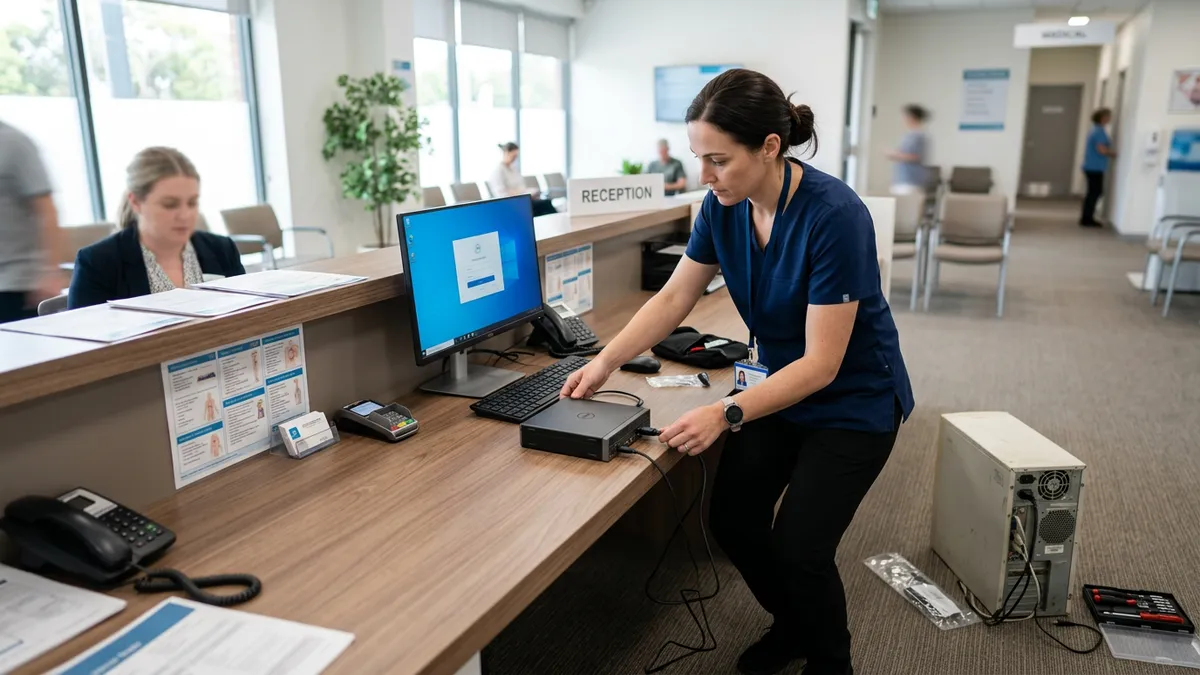
The front desk computer still boots to Windows 10. So does the PC that runs your panoramic X-ray, because the imaging vendor never certified its software for Windows 11. Nobody has touched either machine since Windows 10 support ended in October 2025, and both hold patient data.
If that sounds familiar, you have a decision to make before October 13, 2026. That is when the first paid year of Microsoft's Extended Security Updates ends. Here is what HIPAA compliance expects, what the options cost, and how to decide machine by machine.
Yes. Microsoft ended support for Windows 10 on October 14, 2025, but the operating system keeps running. What stopped was everything that keeps it safe: technical support, feature updates and security updates.
A PC running Windows 10 without Extended Security Updates gets no fixes for newly found flaws. Attackers study each monthly Windows patch to find the same flaw in unpatched systems. Continuing to use unsupported software leaves the machine open to cyber threats that grow every month.
Not automatically. Running Windows 10 is not, by itself, one of the HIPAA violations OCR penalizes. HIPAA regulations never name an operating system or a version. What the HIPAA Security Rule requires of covered entities is a risk analysis of every system holding electronic protected health information, and protection from malicious software.
An unsupported operating system is a known, serious risk you must record in that analysis. You must also show what you did about it.
Running Windows 10 without a documented reason and a plan is hard to defend in an audit or after a breach. That gap is the real compliance risk, not the logo on the screen.
The bar is also rising. The proposed Security Rule update would set 15-day deadlines for critical patches. That is impossible on an end-of-life (EOL) machine that receives no security patches, as our guide to preparing for the new HIPAA Security Rule explains.
ESU keeps an EOL system on security patches without making it new again. It delivers only critical and important security updates for Windows 10.
It adds no new features and no non-security fixes. Microsoft also provides no general technical support beyond problems with ESU itself.
There is a prerequisite many practices miss. ESU only works on Windows 10 version 22H2, with two specific preparation updates installed first. A machine stuck on an older version must be brought up to 22H2 before it can enroll.
Businesses buy ESU through Microsoft Volume Licensing, with a minimum of one license. Year One costs $61 per device, and the price doubles every year for a maximum of three years.
| ESU year | Coverage ends | Price per device |
|---|---|---|
| Year One | October 13, 2026 | $61 |
| Year Two | October 12, 2027 | $122 |
| Year Three | October 2028 | $244 |
Watch the trap in how Microsoft sells it. ESU is cumulative, so a practice that joins in Year Two must also pay for Year One. Skipping Year One saves nothing if you enroll later; it only leaves those machines exposed in between.
Not on ordinary office PCs. Microsoft offers a consumer ESU program for home users, but it cannot be used in commercial scenarios. Domain-joined and centrally managed business devices are excluded.
ESU is included at no extra cost for Windows 10 virtual machines in Windows 365 and Azure Virtual Desktop. Windows 10 PCs that connect to Windows 365 Cloud PCs are also covered. For a typical small practice, moving to cloud PCs is a bigger project than the problem it solves, so treat it as a niche option.
Every Windows 10 machine in the office needs one of three answers. Decide per device, not per office.
If the hardware qualifies, upgrading is the cheapest path. The upgrade to Windows 11 is free on eligible PCs. The hardware requirements for Windows 11 that trip up older machines are TPM 2.0 (a Trusted Platform Module security chip), Secure Boot and a supported processor.
Run Microsoft's PC Health Check app on each machine to see where it stands. Then check software compatibility: your EHR, billing and practice management software should list Windows 11 as supported before you schedule the work.
Machines that fail the hardware requirements need replacing. Run the numbers honestly: three years of ESU comes to $427 per device, and at the end of it you still need a new PC. ESU postpones the purchase; it never avoids it.
A new Windows 11 Pro machine also arrives with a warranty and years of updates ahead of it. For most aging front-office PCs, replacing now costs less in total than paying to delay.
ESU is for machines that genuinely cannot move yet. The usual examples are imaging acquisition PCs, lab instruments and other devices whose vendor has not certified Windows 11. Our guide to securing connected medical devices covers how to isolate them.
For each exception, write down why it cannot upgrade and when it will be replaced. That record is what keeps an exception HIPAA compliant rather than simply overlooked.
Put it on its own network segment, away from email and web browsing. ESU buys time; it is not a strategy for 2029.
The hardest machines to move are the ones tied to clinical equipment. An imaging workstation may only be supported by its vendor on a specific operating system. Changing it on your own can break the equipment or void the support contract.
Ask each equipment vendor three questions in writing. When will they support Windows 11, what does the move cost, and will they install it for you? Their answers belong in your risk analysis alongside the device.
Plan your Windows 11 migration around patient schedules to avoid operational disruptions. Stagger upgrades so one front desk station is always working, and test the whole day's workflow on the first machine before touching the rest. Our broader guide to end-of-life operating systems covers the same planning for servers.
Step six is what protects your compliance if something goes wrong. In an OCR investigation, the risk analysis is one of the first documents requested. Our HIPAA risk assessment checklist shows how to document it.
Once they check, many practices that migrate to Windows 11 find only one or two true exceptions. Every machine you move improves your security posture for years, not months.
The rest simply need an afternoon of upgrades or a hardware order. If you would rather hand the whole inventory and migration to someone else, our managed IT services include exactly this kind of operating system transition.
Ready to take the next step? Explore our healthcare IT services, book a free consultation, or compare our plans.



Managed IT, cybersecurity, HIPAA compliance, and AI automation for healthcare practices. We keep your technology secure so you can focus on patient care.

4MEDNET.COM - Copyright 2026. All rights reserved.


